

How to Add a SharePoint Site to Microsoft Teams
You can enhance collaboration by adding an existing SharePoint site to a Microsoft Teams channel. This allows users to access files, pages, and lists directly from Teams.
When Should You Do This?
- You created a SharePoint communication site or team site not linked to Teams.
- You want to embed document libraries or pages into Teams channels.
- You need centralized access to SharePoint content within Teams.
Method 1: Add SharePoint as a Tab in a Channel
- Open Microsoft Teams.
- Navigate to the desired team and channel.
- Click "Add a tab" at the top of the channel.
- Select "SharePoint".
- Choose one of the following:
- A specific page from the site.
- A document library.
- Paste a SharePoint link manually.
Click "Save".

Method 2: Add SharePoint Site as a Website Tab
- Open Microsoft Teams.
- Navigate to the desired team and channel.
- Click "Add a tab".
- Select "Website".
- Enter the tab name (e.g., Intranet).
- Paste the full SharePoint URL (e.g., https://contoso.sharepoint.com/sites/Marketing).
- Click "Save".

Note: Users must have access to the SharePoint site; otherwise, the tab will show an error or require login.
Method 3: Create a Team from an Existing SharePoint Site
- Go to the SharePoint site you want to connect to Teams.
- In the site header, click "Add to Teams" (if available).
- Teams will open, and a new Microsoft Team will be created and linked to the SharePoint site.
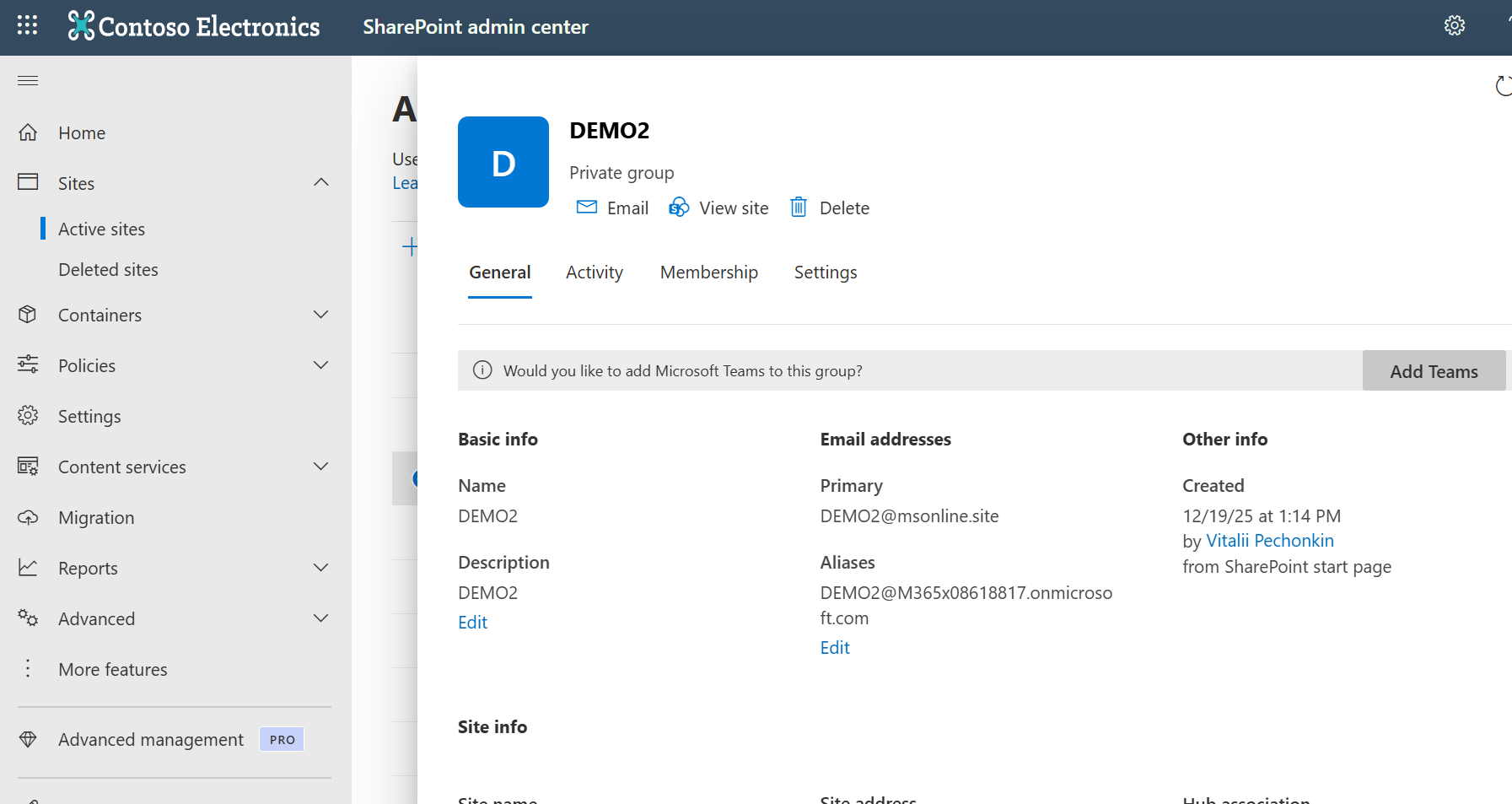
This method only works for: - Team Sites backed by Microsoft 365 Groups. - Sites not already connected to Teams.
Important Notes
- Adding SharePoint as a tab only embeds it visually; it does not fully integrate the site with Teams features.
- To get full Microsoft 365 integration (Planner, shared mailbox, calendar, etc.), you must link a Microsoft 365 Group.
- Communication sites are often used as read-only intranet pages, and work well as website tabs.
- Tabs are user-specific. Each user must have permission to view the SharePoint site content.