

How to Stop Sharing and Remove Access in SharePoint
This guide explains how to review access, stop sharing, and remove permissions for documents and folders in Microsoft SharePoint Online.
1. Overview
In SharePoint, access to documents and folders can be granted through: - Direct user permissions - Sharing links - Group or site membership
Stopping access depends on how the access was originally granted.
2. Accessing Manage Access
To review or change access permissions:
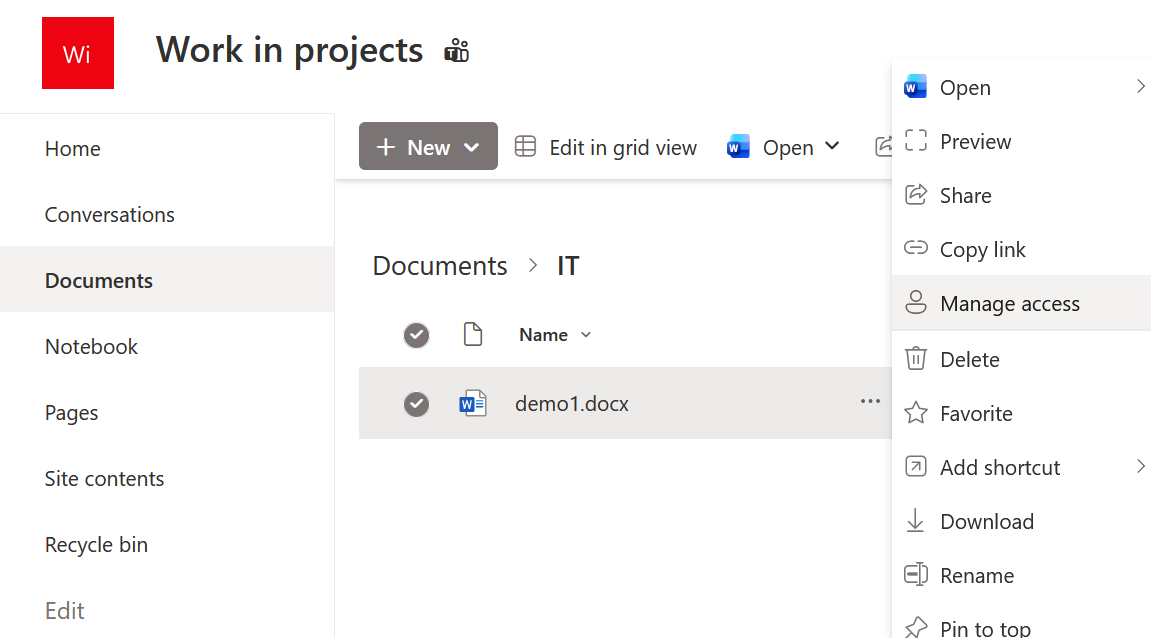
- Open the document library.
- Locate the file or folder.
- Click the three dots next to the item.
- Select Manage access.
3. Manage Access Overview
The Manage access panel displays how access is currently assigned.
It contains the following sections: - People – users with direct access - Groups – access inherited from site or Microsoft 365 groups - Links – sharing links created for the item
If the file has not been shared, the message
“This file has not been shared with anyone yet”
will be displayed.

4. Stop Sharing
Stop Sharing Using the Stop Sharing Button
If sharing links exist:
- Open Manage access.
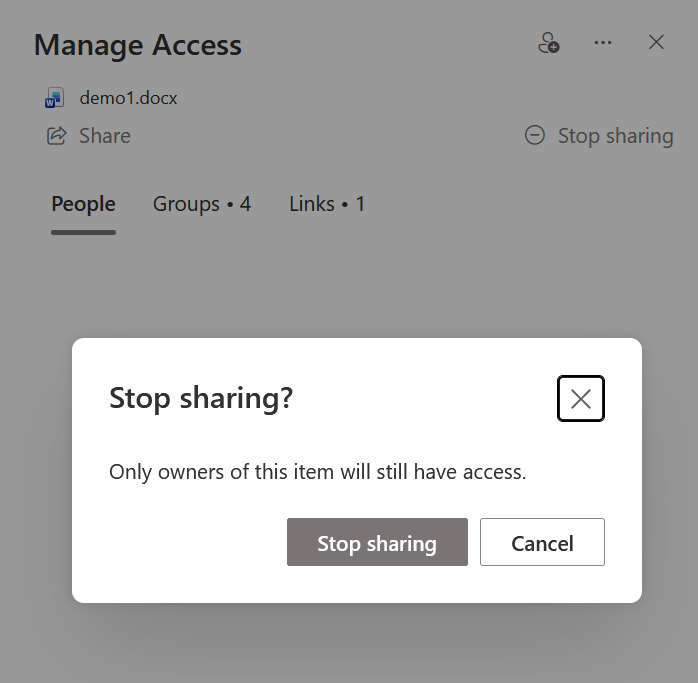
- Click Stop sharing (top right).
- Confirm the action if prompted.
Effect: - All sharing links are removed. - External and link-based access is revoked. - Group and site permissions remain unchanged.
Important Notes About Stop Sharing
- If no sharing links exist, Stop sharing has no effect.
- Stop sharing does not remove access granted via:
- Site membership
- Microsoft 365 groups
- The document or folder is not deleted.
5. Removing a Specific User
If a user has direct access:
- Open Manage access.
- Locate the user under People.
- Select the user menu.
- Click Remove access.
Effect: - The selected user immediately loses access. - Other users are not affected.
6. Removing Group-Based Access
If access is granted through a group:
- You cannot remove the user from the file directly.
- The user must be removed from:
- The SharePoint site members
- Or the Microsoft 365 group
Group membership changes affect all content in the site.
7. Removing External Access
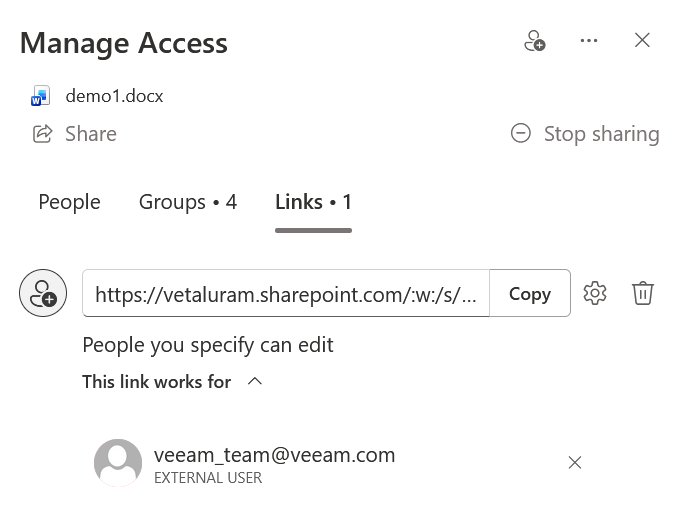
External access can be removed by: - Removing the sharing link - Removing the external user from Manage access - Removing the guest user (admin action)
Best practice: - Always remove sharing links when external collaboration ends. - Use expiration dates for external links.
8. Restoring Permission Inheritance
If a file or folder has unique permissions:
- Open Manage access.
- Open Advanced settings (if available).
- Select Restore inheritance or Delete unique permissions.
Effect: - All unique sharing is removed. - Permissions are inherited from the parent library or site.
9. Common Mistakes
- Removing a link but leaving direct access
- Removing a user who still has group access
- Using Stop sharing expecting group access to be removed
- Restoring inheritance without reviewing parent permissions
10. Best Practices
- Review Manage access before making changes
- Prefer group-based access for long-term collaboration
- Remove unused sharing links regularly
- Use expiration dates for external sharing
- Avoid excessive unique permissions
Summary
Stopping sharing in SharePoint requires understanding how access was granted. By correctly using Manage access, removing links, users, or restoring inheritance, you can control document access without disrupting collaboration.